Hardware info
CPU
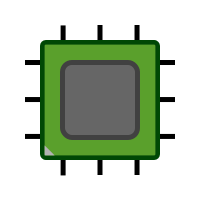
CPU or the Central Processing Unit, often called the brain of your computer follows instructions and makes decisions, kinda like you, solving problems.
It processes your data using its cores and threads. Besides that it will fetch, decode and execute the instructions that are stored in the RAM
The clock speed and the number of cores it contains will decide how fast your CPU works. Although it also matters if it's a new or old CPU.
The clock speed is measured in GHz (gigahertz), this will tell you how many cycles the clock does in one second. 1GHz would be 1 billion cycles per second.
The reason why it works faster with more cores is because it's able to perform more tasks at once.
The CPU will produce heat when it is active and needs to be cooled. If not cooled the CPU can get damaged it in the long term. Most CPU's will shut down if the temperature gets higher than the maximum set in the bios settings.
There are two ways a CPU can be cooled:
- Passive cooling: You let the CPU cool itself down without help.
- Active cooling: The CPU is cooled by a heatsink with a fan on top that cools it with air or water cooling where a pump pumps water through a closed loop with a cooler in between.

RAM
RAM, or Random Access Memory, is often referred to as your computer's short-term memory. It temporarily stores the data your computer needs while you're working on tasks, kind of like a workspace where things are quickly accessed and put away.
Your computer uses RAM to keep programs and files open and running smoothly. The more RAM you have, the more things your computer can keep active at once without slowing down.
The speed of your RAM is also important. It's measured in MHz (megahertz), which indicates how quickly data can be read from or written to it. The faster the RAM, the quicker your computer can access the information it needs.
More RAM allows your computer to work with larger files and run more applications simultaneously. This is especially helpful when you're multitasking or using memory-heavy programs, like video editing or gaming. It can be done by adding more GB (gigabytes) of RAM in your system.
!! Don't run out of RAM !! When you don't have enough RAM, your computer has to use slower storage like your hard drive or SSD, which can make everything feel slow.
Storage
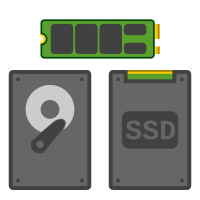
Your storage is where your computer keeps all your files, programs, games, photos, videos—... basically everything! Unlike RAM, which forgets everything when your computer turns off, storage keeps your data safe until you delete it or move it.
There are a few types of storage you’ll come across, and each one has its own strengths:
HDD: This is the older, more traditional type of storage. It's a lot of storage for a low price.
SSD: SSDs are faster but expensive and is a more durable storage.
NVMe: It's the fastest type of storage It’s a type of SSD that connects with your computer in a special way.
Storage is measured in gigabytes(GB) and terabytes(TB). More GB or TB means more room to save things. If your computer runs out of storage, you might need to delete files or upgrade to a bigger drive.
!! Keep your storage healthy !! Try not to let it get too full. When it’s almost at it's limit, your computer can slow down. Having a mix of speed (like an SSD or NVMe) and size (like a big HDD) is often the best setup.
HDD
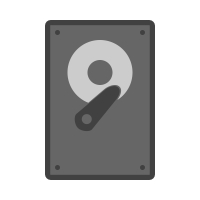
The Hard Disk Drive or HDD, is one of the most common types of storages used in computers. It’s like a long-term memory that holds your files, programs, and operating system even when your computer is turned off.
HDDs use spinning disks (also called platters) to store data. These disks spin very quickly while a small arm reads and writes data. Because it uses moving parts, the HDD can be slower than other storage options, especially when you're opening large files or programs.
The main unit used to measure the size of storage in an HDD (or any storage device) is gigabytes(GB) or terabytes(TB). So, if you have a 1TB hard drive, it can store up to 1,000 gigabytes of data.
!! Beware of running out of space !! If your hard drive gets too full, your computer can slow down, as it needs space to work with. You might need to upgrade your storage if this happens.
SSD
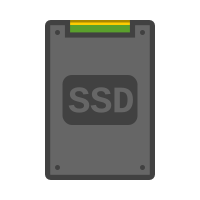
A Solid-State Drive or SSD is a type of storage used in modern computers, and it’s much faster than an HDD. Unlike an HDD, it has no moving parts. Instead, it uses flash memory (similar to USB drives) to store data, which makes it faster, more durable, and quieter.
The main difference between an SSD and an HDD is that they don’t have any moving parts. This means they can access and load data much quicker than an HDD, resulting in faster boot times and quicker program loading. This is why SSDs are often preferred in newer computers or when speed is a priority.
However, SSDs are usually more expensive than HDDs for the same amount of storage. But the speed and performance boost you get from an SSD are well worth the extra cost for many users.
It's measured in gigabytes(GB) or terabytes(TB), depending on how much storage they offer. For example, a 500GB SSD will hold up to 500 gigabytes of data.
!! Upgrade to an SSD if you want speed !! If you're looking for faster performance, especially with tasks like gaming or video editing, an SSD would be better for you.
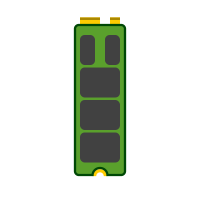
NVME
NVMe or Non-Volatile Memory Express, is a high-speed storage protocol used in SSD's. While SSDs are much faster than traditional HDDs, NVMe drives are even faster than regular SSDs.
NVMe is so fast because of how it connects to your computer. Traditional SSDs uses the SATA (Serial ATA) interface, which was designed for older hard drives, meaning it can slow down the performance of SSDs. On the other hand, NVMe uses the PCIe (Peripheral Component Interconnect Express) interface, which allows data to transfer much faster by connecting directly to your computer’s motherboard.
Think of it like this: If an SSD is like a fast highway for your data, NVMe is like a superfast, high-speed express lane. This makes NVMe drives especially good for demanding tasks, such as gaming, video editing, and large data transfers, where speed is needed.
Another key advantage of NVMe is that it doesn’t have any moving parts, like SSDs, so it’s also highly durable. Since NVMe uses flash memory (like SSDs), it stores data even when the computer is turned off, making it a non-volatile memory type (HDD was volatile).
NVMe drives can also handle more input/output operations per second (IOPS) compared to regular SSDs. So even more tasks in less time!
!! NVMe is the best choice for speed !! If you want the fastest performance, and you’re doing tasks that require quick data access, an NVMe drive would be your best option. It’s becoming the new standard for high-performance storage in modern computers.
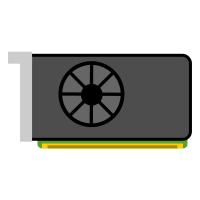
GPU
The GPU or Graphics Processing Unit, is a part of your computer that’s in charge of everything you see on your screen. Whether you’re watching a video, editing photos, or playing a video game, it helps create the images and animations.
You could also call it your graphics card. Its main job is to handle the visual tasks, especially when there’s a lot of detail, like in 3D games or high-definition movies. Instead of letting the CPU do all the work, the GPU takes over the graphics part so everything runs better and looks nicer.
For everyday tasks like using the internet or writing documents, a simple GPU is enough. But if you’re gaming, editing videos, or doing graphic design, a stronger GPU will help your computer perform much better. In fact, a gaming PC usually needs a good graphics card to run modern games smoothly and avoid lag.
Some well-known companies that make GPUs are Nvidia and AMD. Intel also has some basic graphics built into its processors, but Nvidia and AMD are the big names when it comes to powerful, dedicated graphics cards.
If your game or visual program runs slowly, one of the best upgrades you can make is to your graphics card. A better GPU can make a huge difference in how fast and how nice things look on your screen.
!! Keep it cool !! Just like with the CPU, make sure your GPU stays cool. Powerful graphics cards can get hot when they’re working hard, so they often come with their own fans!
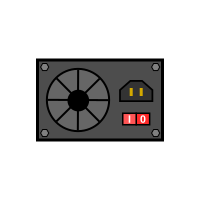
Power Supply
The Power Supply Unit, or PSU, is the part of your computer that delivers power to all components. Just like your phone needs a charger to work, your computer needs a PSU to turn on and stay running.
The PSU takes the power from your outlet and turns it into a form that your computer parts, like the CPU, GPU, and motherboard, can safely use. It sends power through cables to each part, making sure everything gets just the right amount of energy.
How much power a PSU can provide is measured in watts (W). The more powerful your PC is (especially if it has a big graphics card or multiple drives), the more watts it will need. So yes, the PSU does determine how much power your computer can use!
It’s important to have a PSU that matches your computer’s needs. If your PSU is too weak, your PC might shut down randomly, freeze, or not turn on at all. That’s why, if a computer is suddenly turning off for no reason, the power supply might be the issue.
There are many sizes of PSUs—like 450W, 600W, or even 1000W. You don’t always need the biggest one, but it’s smart to have a little extra power just in case you'd upgrade your parts later.
!! Beware !! A bad or low-quality PSU can damage other parts of your PC. Always get one from a trusted brand!
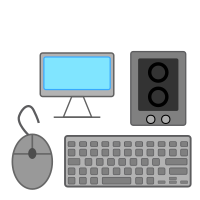
Peripherals
Peripherals are the parts you connect to your computer from the outside. These include things like your: mouse, keyboard, monitor, printer, headphones, and USB sticks. If it’s something you plug into the computer (or wirelessly connect) to use it, it’s probably a peripheral.
Some peripherals help you control your computer, like a mouse or keyboard. Others help you see or hear things, like a monitor or speakers. You can even add things like webcams, microphones, game controllers, or drawing tablets—all of these are considered peripherals too.
Things like the CPU, which is inside the computer and does all the thinking or the RAM, that was a volatile storage, are not peripherals. Peripherals are usually optional or removable. They're not built-in parts of the system’s core.
Some devices, like Wi-Fi adapters, can also be connected externally and let your computer connect to wireless internet. Another helpful peripheral!
Many peripherals connect through USB ports. These are the small rectangular ports you usually see on the front or back of a computer. You can plug in things like USB drives, game controllers, or charging cables.
And if your computer is getting hot, it’s not your mouse or keyboard that fixes that, it’s devices like a fan or a liquid cooler. These aren’t typical peripherals, but they are very important for keeping your PC from overheating!
!! Remember !! Even if you use a special gaming mouse or keyboard, it won’t make your computer process faster. It only makes your experience smoother and more fun!
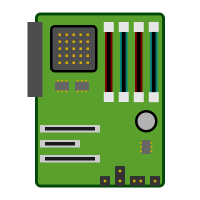
Motherboard
The motherboard is like the main road of your computer. It connects all the important parts together so they can work as a team. Every major part of your computer, like the: CPU, RAM, GPU, storage drives, and more..., plugs into the motherboard.
Think of it as a big flat board full of tiny circuits and slots. When you turn on your computer, the motherboard helps send power and information between all the parts. That’s why every main component connects to the motherboard in some way!
There are special slots on the motherboard for different parts:
- The RAM: goes into long, thin slots near the CPU. You usually have two or more of these.
- The GPU: plugs into a slot called a "PCIe slot". It’s the big one near the bottom half of the board.
- Storage drives like HDDs or SSDs are connected using cables (usually SATA or NVMe connections).
- The PSU: connects with power cables to give energy to the motherboard and other parts.
But not everything connects to the motherboard directly. For example, a mouse plugs into a USB port, which is attached to the motherboard, but the mouse itself isn’t installed onto it like a GPU or RAM. So technically, the mouse does not connect directly to the motherboard like the other core parts do.
!! Keep in mind !! When building or upgrading a PC, always check that the parts you want to add are compatible with your motherboard. Not all CPUs, RAM, or GPUs fit into every board.